A Zoomable jQuery Image Gallery Called jPhotoGrid
View the Demo | Download the Zip
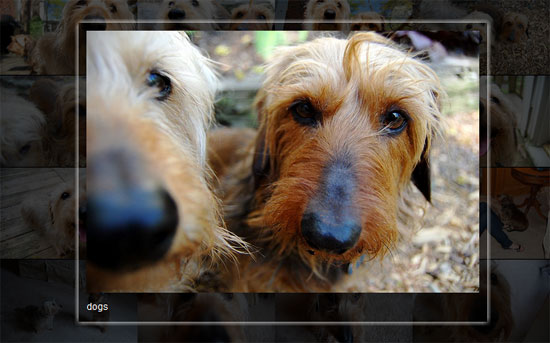
The screenshot above is jPhotoGrid in action. This plugin takes a simple list of images and captions and turns it into a grid of photos that can be explored and zoomed. You can check out a demo here.
Overview
Nearly all of the styling for this plugin is done in css. The trick is to layout the grid by floating the list items. The first thing the plugin will then do, is convert these all to absolutely positioned. This is what allows the plugin to zoom in on an individual image and then return it to its place. Like my interactive map plugin, this depends on the browsers ability to scale images. In my stylesheet, the images are set to width:100% and I simply animate the size of the container.
The Markup
The html for this plugin is simply an unordered list of images and captions. Here is the format:
<ul>
	<li>
		<img src="/hifi/site/edit/blog/source.jpg" alt="" />
		<p>Caption Here</p>
	</li>
	...
</ul>
The CSS
The CSS is also fairly straight-forward. The key things to notice are the .active and .selected classes. When you hover over a list item, it is given the class 'active'. Once you have clicked the list item, it is given the 'selected' class.
#pg { position: relative; height: 585px; background: #000; }
#pg li { position: relative; list-style: none; width: 175px; height: 117px; overflow: hidden; float: left; z-index: 2; opacity: .3; }
#pg li.active { opacity: 1; }
#pg li.selected { opacity: 1; z-index: 99; -moz-box-shadow: 0px 0px 10px #fff; -webkit-box-shadow: 0px 0px 10px #fff; }
#pg li img { display: block; width: 100%; }
#pg li p { color: white; margin: 10px 0; font-size: 12px; }
The Javascript
The javascript is easy enough to set up. It needs to know the sizing of the thumbnails as well as the sizing and positioning of the zoomed image. This is how the plugin is able to zoom and restore each of the images. Note that you can also change the active and selected classes by setting them using the 'activeClass' and 'selectedClass' options.
$('#pg').jphotogrid({
	baseCSS: {
		width: '175px',
		height: '117px',
		padding: '0px'
	},
	selectedCSS: {
		top: '50px',
		left: '100px',
		width: '500px',
		height: '360px',
		padding: '10px'
	}
	});
Conclusion
While not nearly as extensible or flexible as most of the plugins I like to put together, I enjoyed this one. It is a fun way to explore a gallery of images and ends up working great in conjunction with the jFlickerFeed Flickr Plugin I put together last week. If you have any questions or comments, leave them below.
Related Posts


Comments
ronald
i have tried to hide the images and the appear only when a button is clicked, unfortunately when the button is clicked the div appears without the imagesStefana
Hi, i know it's and older post...but i like very much this photo gallery. I have an issue though with the downloadable version...it doesn't seem to work in Internet Explorer. Is there any update for it? I would even pay for it...if it's available :DThanks,
Stefana
Dan
Pagination is possible?Bob
In response to Alex, I changed the code in jphotogrid.js for the 'function select(el)' as follows:function select(el){
hideSelected(function(){
settings.selectedCSS.left = $(el).position().left - 50;
settings.selectedCSS.top = $(el).position().top - 60;
$(el).addClass('selected').removeClass('active');
$(el).animate(settings.selectedCSS, 'slow');
});
}
What this does is pick up the current screen location of the thumbnail, and then positions the expanded image at the same same top/left location (less 50,60 pixels). That way, users can scroll down a long list and still see the expanded image. Can't remember if I had to mess with the CSS?
Rafia
Good I like itThank You
elang ajib
wow, this looks better. thank youelang ajib
wow, ini terlihat lebih bagus. terima kasihsagebrushsoul
Hello,I was wondering if it is possible to instead of an overlay, put another picture on top and when you hover the bottom picture shows and when click the bottom picture enlarges. I really like this look!
cyberpine
Also.. what change do I need to make (likely CSS) so that image pops up dead center of the page?cyberpine
Very Nice .. Thank You!I'm trying to use your solution inside an ASP.NET Content Page of MasterPage with a Repeater control. It renders and works nicely. But I can't seem to to keep the the html unstructured list inside the contentplaceholder .. this might just be an html issue. I've posted my question on stack over overflow here:
http://stackoverflow.com/questions/12237638/kepping-html-lists-ul-li-inside-asp-net-contentplaceholder
Alex NMC team member
Hi Joel, I'm trying to use your image gallery with a long list of images but there's a problem: the selected image always sets to top:50px, so this is off the top of the screen when the list of images is long...Scott Vitale
Are you actively maintaining this any more? I've made some changes to the JavaScript to allow for arbitrary HTML to accompany the caption. In the current version, you could put HTML there, but clicking anywhere within the li element would deselect the photo. Not the behavior you'd want if you were adding interactive elements or form elements to each photo. I'd be happy to submit these changes back to you if you want them. I'm also working on dynamic sizing of the image display based on the image size.Sena Kendali
Its Great. Superrr...john
thank uRies
Can somebody tell me if it's possible to have one photo already zoomed when opening the page?Luca
Hi all, I can't change the value under each photo. If I do, i get a blank page.Leanne
Is there a way to remove the white border surrounding the zoomed in image?طراحی سایت
thank for sharingcapri pants for women
Thanks for the code. Somehow I'll find out how to use it.Hemsida
Great artivle. Thanks for sharingdansk
Looks very cool but can't get it to work with JQ Touch for mobile web app. Tried replacing hover with clicks but no joy...Sandeshaya
Nice, clear, works.Thanks.
webunique
Thank. Very good plugin123doing
It's very good. I like this. Thanks for share. And I wrote something to introduce this project for my readers. You can find the post about this in my website. If something is wrong,pls figure it out.thanks.Joel Sutherland NMC team member
This post originally appeared on the New Media Campaigns Development blog.Leave a comment